Pixelmator Pro Keyboard Shortcuts: The Complete Guide for Mac
Master Pixelmator Pro with this comprehensive keyboard shortcuts guide for Mac. From essential tools to editing and export, become a Pixelmator Pro power user.
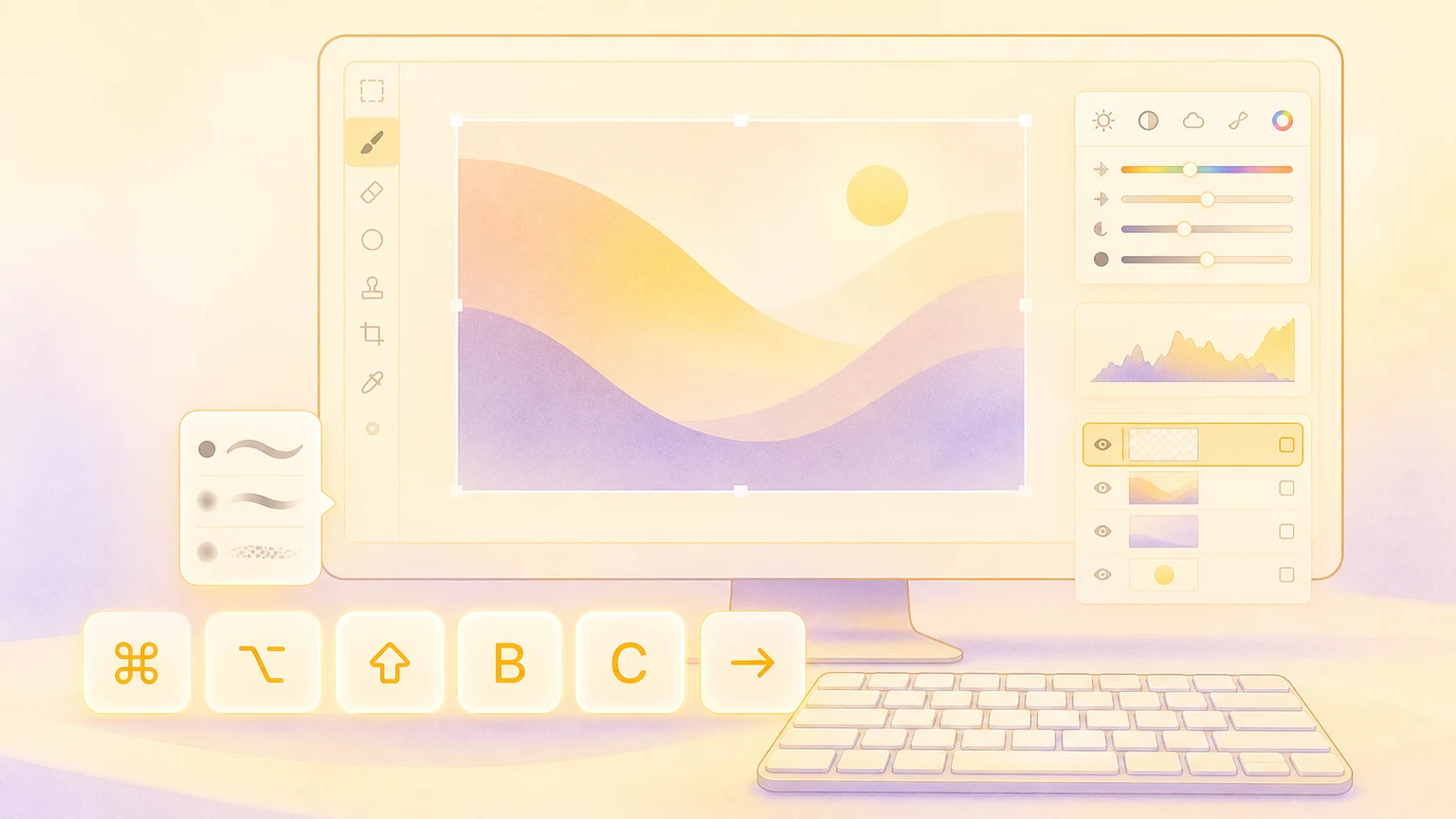
Pixelmator Pro is a modern Mac image editor that blends pro-grade tools with a fast, native feel. Learning its keyboard shortcuts keeps you in the flow, whether you're retouching photos, designing graphics, or preparing assets for export.
Essential tool shortcuts
Quickly switch between Pixelmator Pro's most-used tools.
| Tool | Shortcut |
|---|---|
| Arrange Tool | V |
| Style Tool | S |
| Color Picker | I |
| Free Selection | L |
| Rectangular Selection | M |
| Elliptical Selection | Y |
| Color Selection (Magic Wand) | W |
| Quick Selection | Q |
| Paint | B |
| Erase | E |
| Color Fill | N |
| Gradient Fill | G |
| Repair | R |
| Clone | O |
| Shape | U |
| Pen | P |
| Type | T |
| Zoom Tool | Z |
| Hand Tool | H |
Pro tip: Hold Space to temporarily switch to the Hand Tool for panning, then release to return to your previous tool.
File operations
Manage files and export quickly.
| Action | Shortcut |
|---|---|
| New Image / Template | ⌘ + N |
| New Image from Clipboard | ⌥ + N |
| Open Image | ⌘ + O |
| Save | ⌘ + S |
| Duplicate | ⇧ + ⌘ + S |
| Export Image | ⌘ + E |
| Export for Web | ⇧ + ⌘ + E |
| Close Window | ⌘ + W |
⌘ + P | |
| Preferences | ⌘ + , |
View and navigation
Move around your canvas with speed and precision.
| Action | Shortcut |
|---|---|
| Zoom In | ⌘ + + |
| Zoom Out | ⌘ + - |
| Zoom to Fit | ⌘ + 0 |
| Actual Size (100%) | ⌘ + 1 |
| Scrubby Zoom | ⌥ + Space, then drag |
| Pan Canvas | Space, then drag |
| Rotate Canvas Freely | Space + R, then drag |
| Show/Hide Guides | ⌥ + ⌘ + ; |
Selection and masking
Select, refine, and isolate parts of your image.
| Action | Shortcut |
|---|---|
| Select All | ⌘ + A |
| Deselect | ⌘ + D |
| Invert Selection | ⇧ + ⌘ + I |
| Select Layer Outline | ⌥ + ⌘ + L |
| Select Subject | ⌃ + S |
Layers and organization
Keep your document structured and easy to edit.
| Action | Shortcut |
|---|---|
| New Layer | ⇧ + ⌘ + N |
| Duplicate Layer or Area | ⌘ + J |
| Duplicate (Alternative) | ⇧ + ⌘ + D |
| Group Layers | ⌘ + G |
| Ungroup Layers | ⇧ + ⌘ + G |
| Merge Selected Layers | ⌥ + ⌘ + E |
| Select All Layers | ⌥ + ⌘ + A |
| Insert from Finder | ⇧ + ⌘ + V |
| Delete Layer / Clear Selection | Backspace |
Editing essentials
The basics you will use all day.
| Action | Shortcut |
|---|---|
| Undo | ⌘ + Z |
| Redo | ⇧ + ⌘ + Z |
| Cut | ⌘ + X |
| Copy | ⌘ + C |
| Copy Merged | ⌥ + ⇧ + ⌘ + C |
| Paste | ⌘ + V |
| Paste and Match Style | ⌥ + ⇧ + ⌘ + V |
Color and adjustments
Apply pro-level corrections quickly.
| Action | Shortcut |
|---|---|
| Color Adjustments Layer | ⇧ + ⌘ + A |
| ML Enhance | ⇧ + ⌘ + M |
| Denoise | ⌃ + ⇧ + D |
| Hue & Saturation | ⌘ + U |
| Color Balance | ⌘ + B |
| Levels | ⌘ + L |
| Curves | ⌘ + K |
| Invert Colors | ⌘ + I |
Styles and blend modes
Polish your layers with fewer clicks.
| Action | Shortcut |
|---|---|
| Cycle Blend Modes Forward | ⇧ + + |
| Cycle Blend Modes Backward | ⇧ + - |
| Toggle Styles Preview | ⌃ + M |
Customize your shortcuts
Pixelmator Pro supports system-level shortcut customization in macOS. Go to System Settings → Keyboard → Keyboard Shortcuts... → App Shortcuts, add Pixelmator Pro, and assign custom shortcuts to any menu item.
Show your shortcuts on screen
Recording a tutorial or live demo? KeyScreen displays your keystrokes beautifully on screen so your audience always knows what shortcuts you're using—perfect for polished design walkthroughs and presentations.